
Description
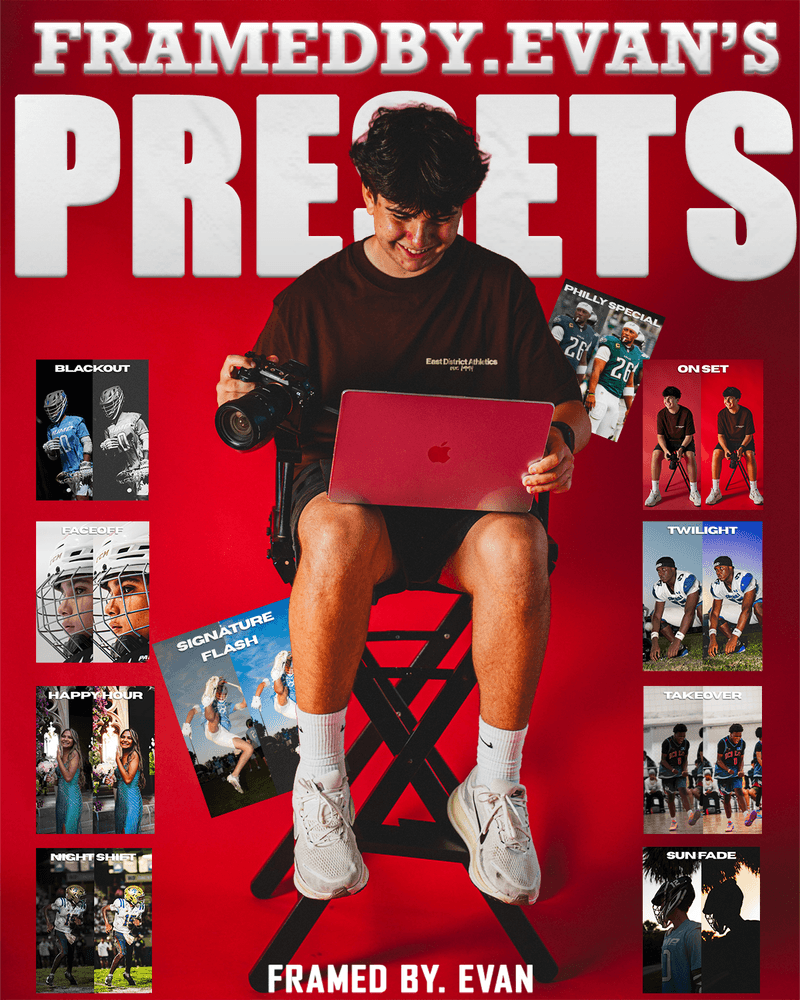
What’s up, everyone? My name is Evan, and I’m the photographer behind framedby.evan. I’ve had the opportunity to shoot for the Philadelphia Eagles, FAU, and OTE, and these 10 presets are the exact ones I use in my own workflow. For just $50, you get the full collection of presets:
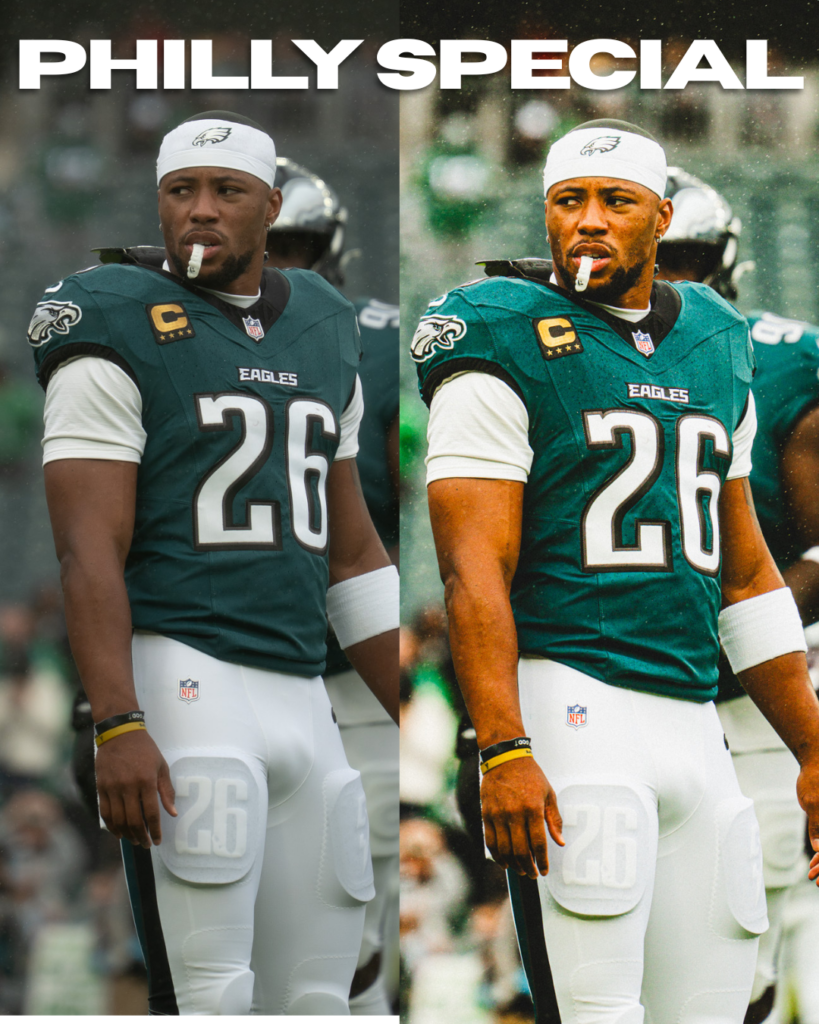
- Philly Special: Clean, professional sports edits.
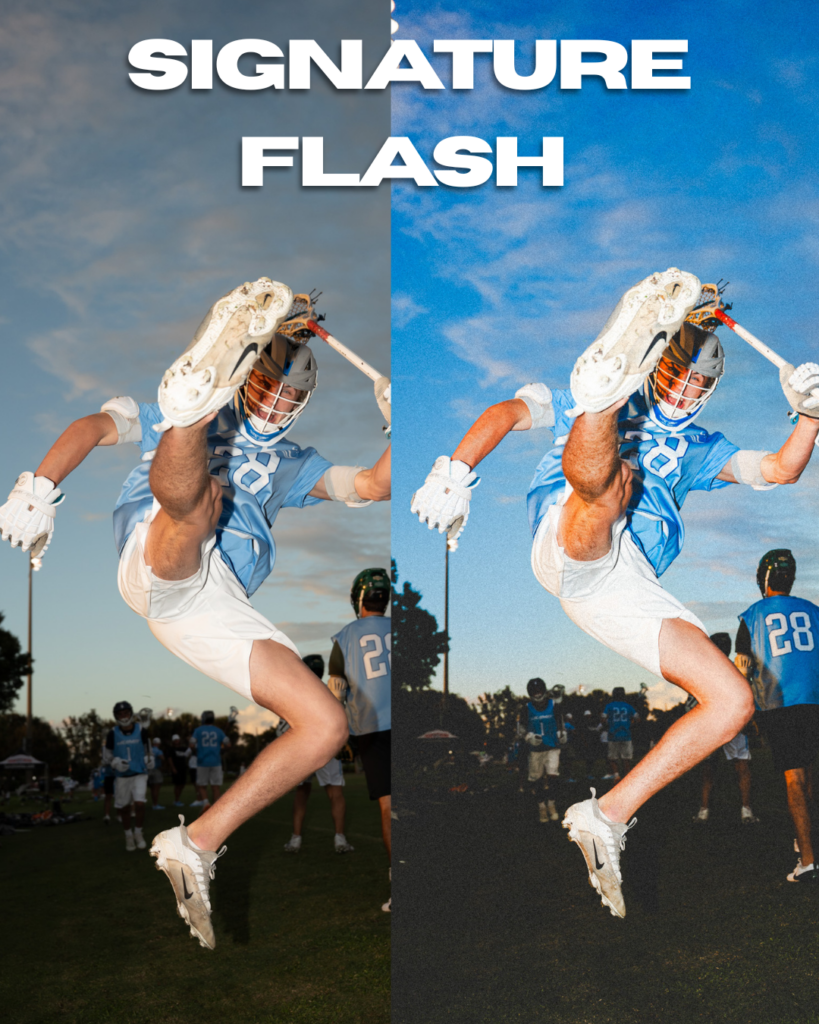
- Signature Flash: Vibrant colors and contrast for flash photography.
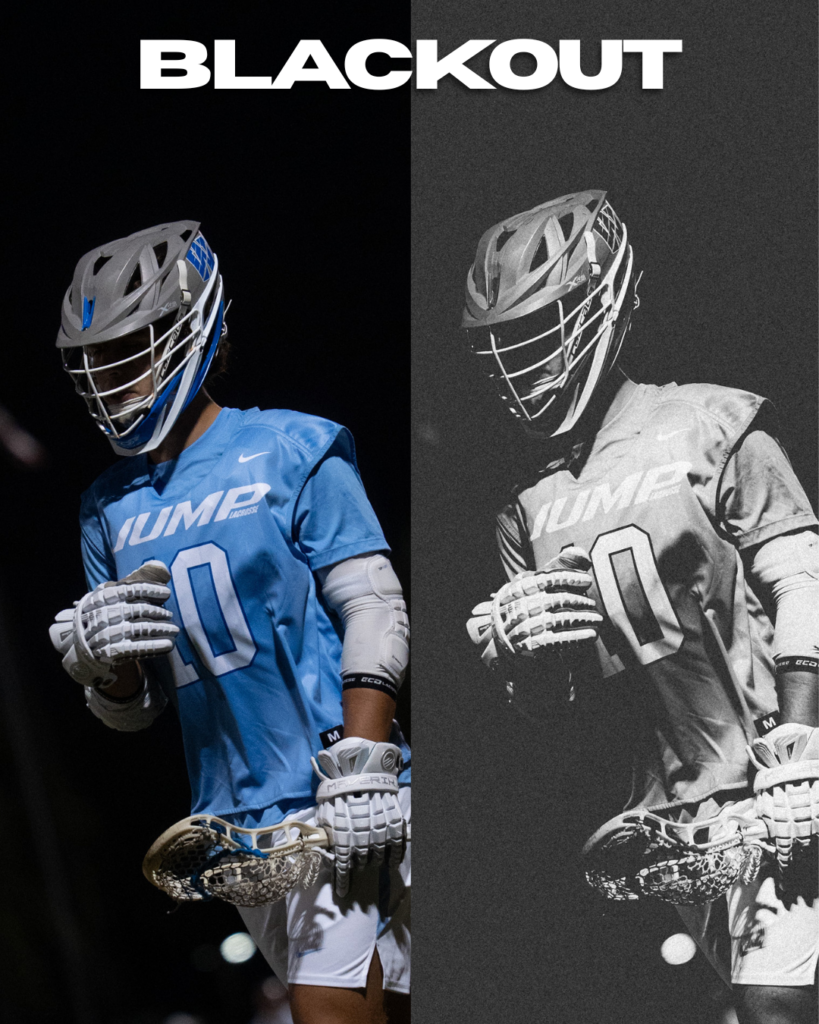
- Blackout: Deep, dramatic black-and-white edits.
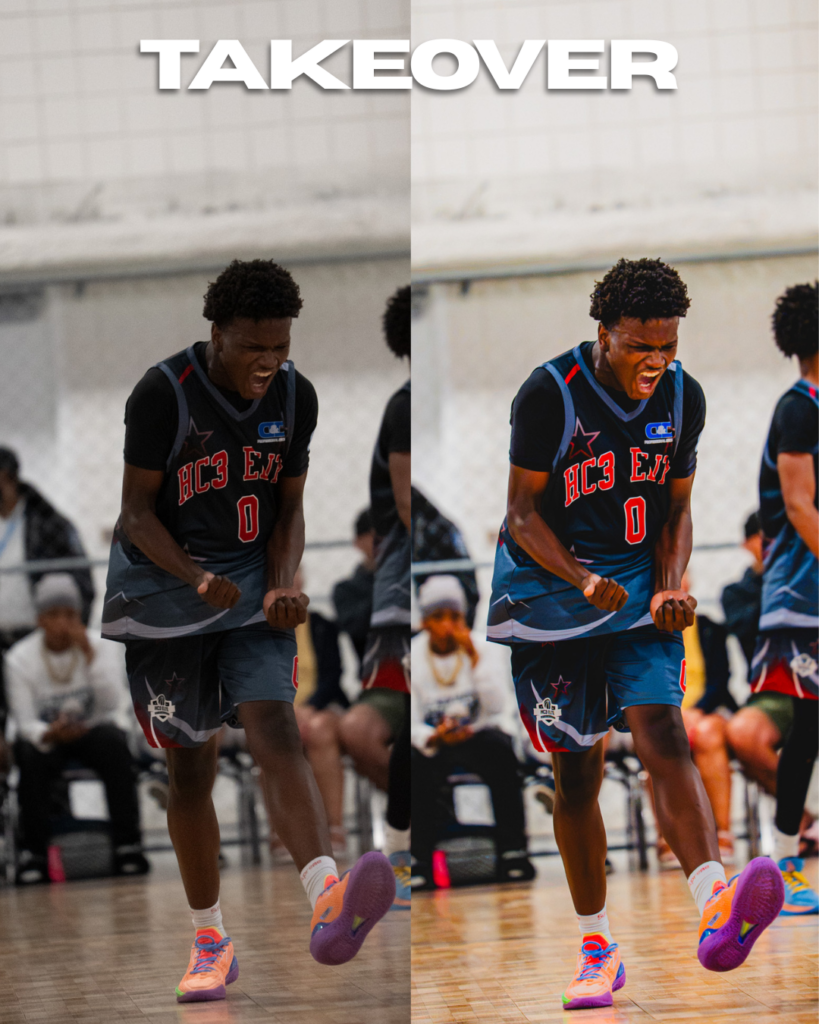
- Takeover: Bold colors and standout edits.
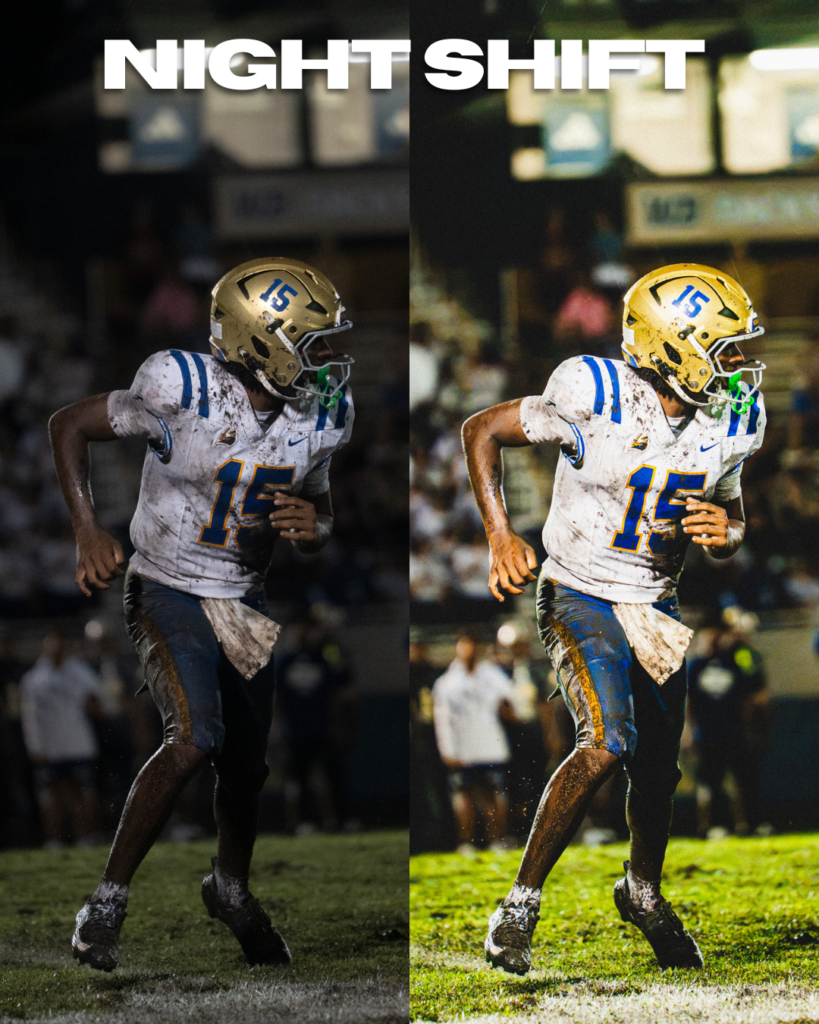
- Night Shift: Nighttime photography with enhanced atmosphere.
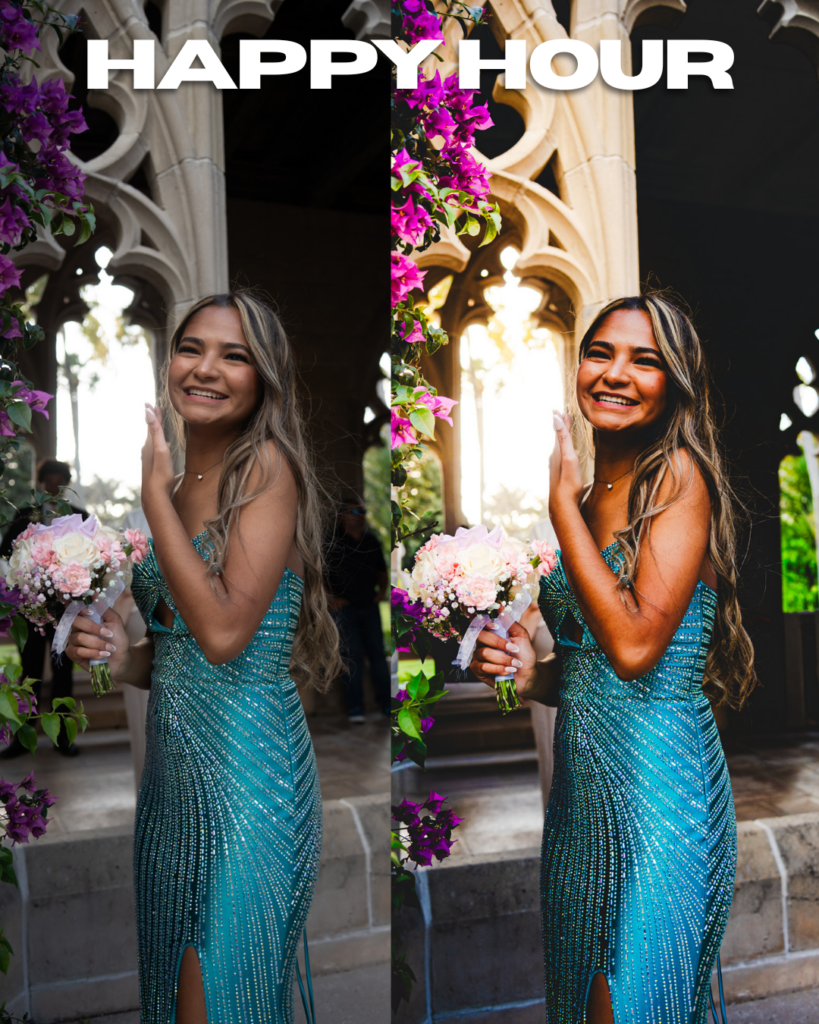
- Happy Hour: Designed for prom photography, with polished colors and a vibrant look.
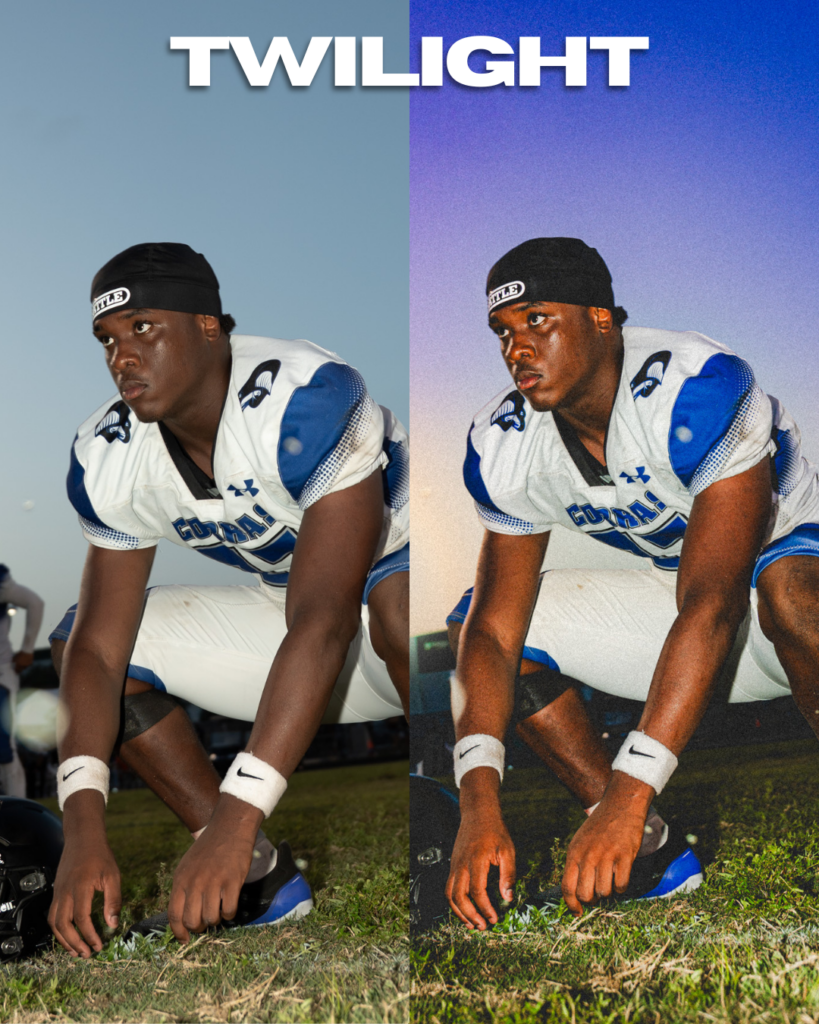
- Twilight: Flash photography with rich colors and beautifully saturated skies.
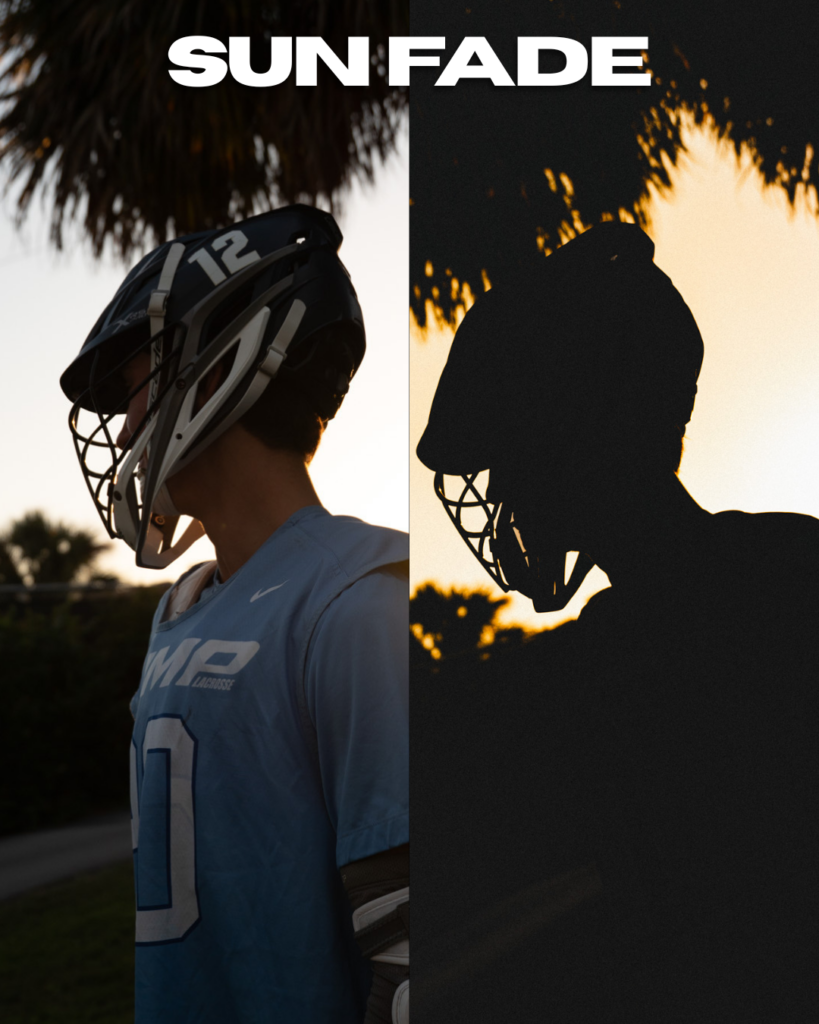
- Sun Fade: Made for underexposed sunsets, helping bring out the colors and atmosphere in the sky.
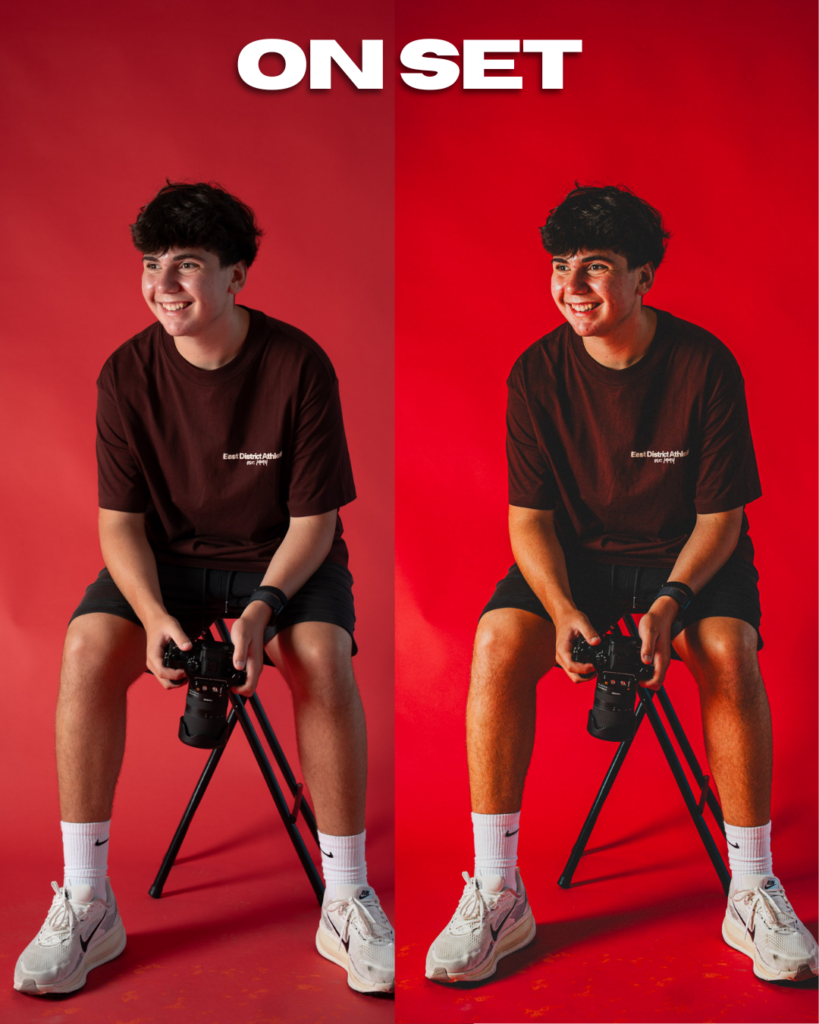
- On Set: Designed for studio shoots and controlled lighting.
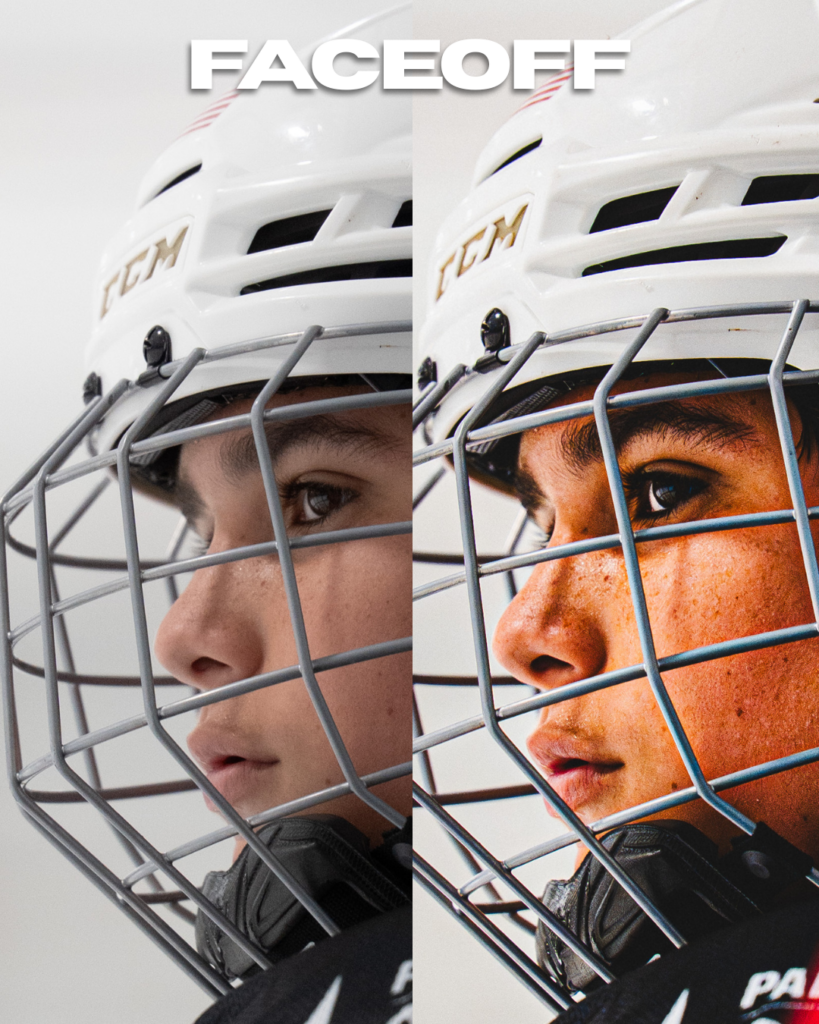
- Face Off: Built for indoor hockey and other indoor sports photography.
These presets are designed to help you achieve the editing styles I use in my own work while significantly cutting down your editing time.
How to install: Download your files from Sellfy → Extract the ZIP folder → Open Lightroom → Go to Presets → Select Import Presets → Choose your XMP files. On Lightroom Mobile, import XMP files through the Presets menu or import DNG files and save them as presets. Compatible XMP files can also be used through Adobe Camera Raw in Photoshop.
Important: These presets are a starting point, not a perfect one-click edit for every photo. Every image has different lighting and colors, so adjustments WILL be needed. After applying a preset, check your white balance, adjust exposure if necessary, and fine-tune contrast and other settings to get the best result. The goal is to speed up your workflow while still giving you control over your final edit. Thank you for supporting framedby.evan, and I can’t wait to see what you create!